GUIDES · PERSONAL TRAINING
Getting started: a personal trainer's quick start
November 2, 2026 · 6 min read
This walkthrough takes you from an empty account to a finished small-group session in about 15 minutes. Your clients don't need the app: you add them by name and log their sets for them. Every screenshot below is from the app as it works today, on a phone.
1. Set up before your first session
Start a free trial at reprivalfitness.com, choose Personal training, and name your business. Then add the people you train this week.
Add your clients
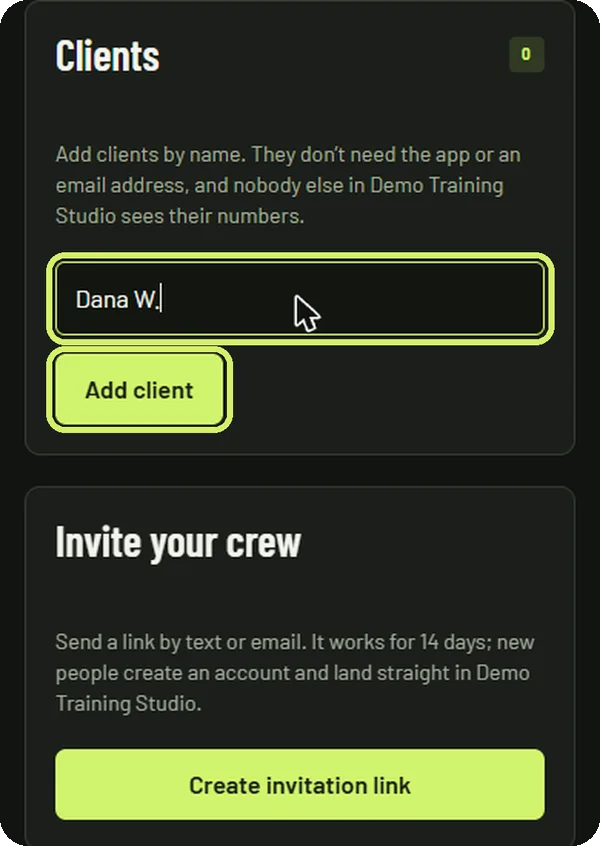
Open Group (bottom right), type a client's name under Clients and tap Add client. No email or app needed on their side, and nobody else in your business sees their numbers.
Write a trainer note
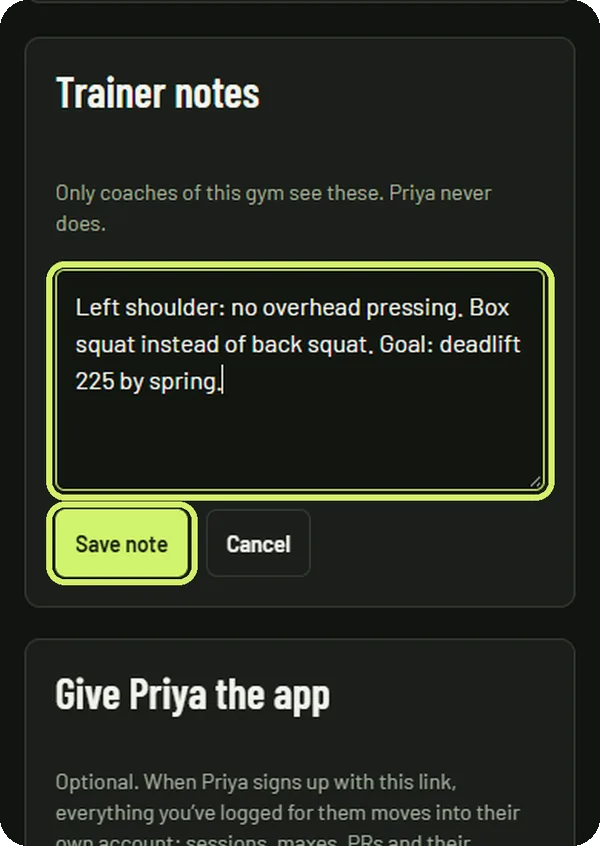
Tap a client's name to open their page. Under Trainer notes, tap Add, write injuries, limits or goals, and tap Save note. Only coaches see it, and it appears every time you train that client.
Enter their maxes
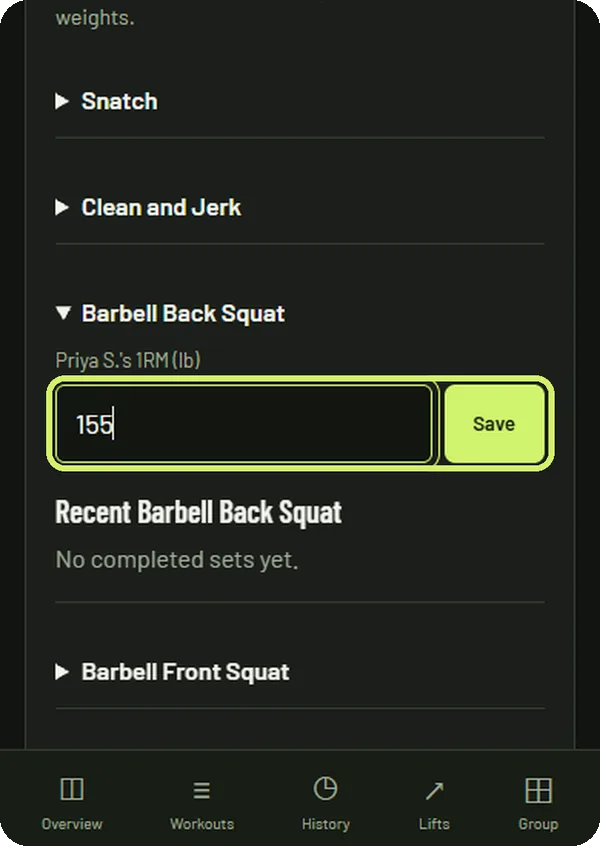
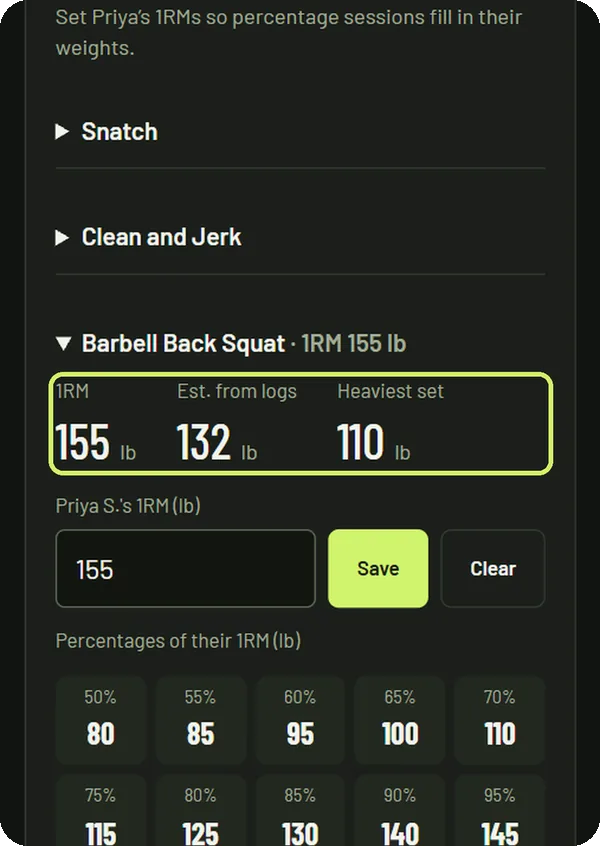
On the same page, open a lift under Lifts & maxes, type the client's 1RM and tap Save. Do their main lifts so percentage sessions fill in their weights.
2. Program a session by percentage
Build the workout once
Tap Workouts and build a workout. Pick Everyone in the gym for a group, or one client for a private program. Add each lift, set sets and reps, tap % of 1RM and type the percentage, then tap Post workout.
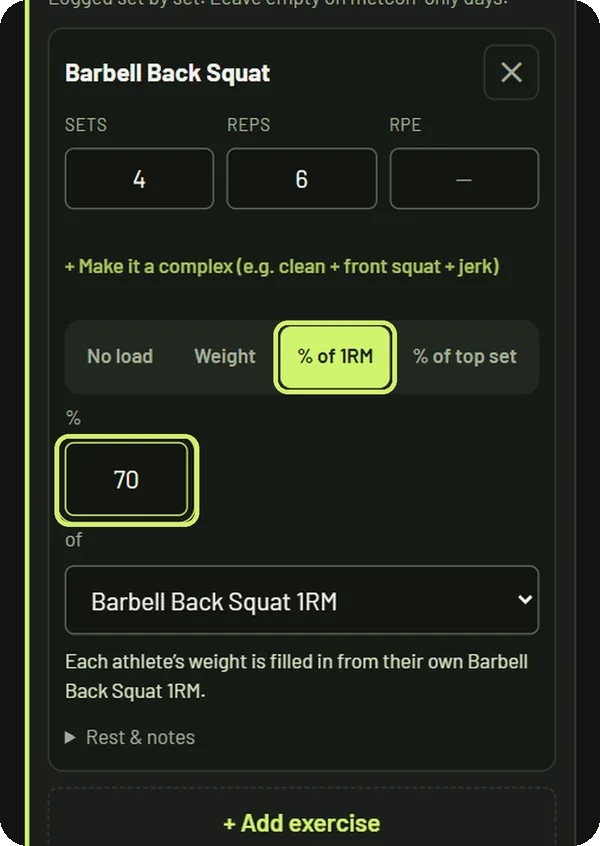
Each client's weight comes from their own max, so one program works for a client squatting 135 lb and one squatting 275 lb. Need something fast? Start from a ready-made session or a classic benchmark and edit it.
3. Coach one client or six at once
Pick who's training
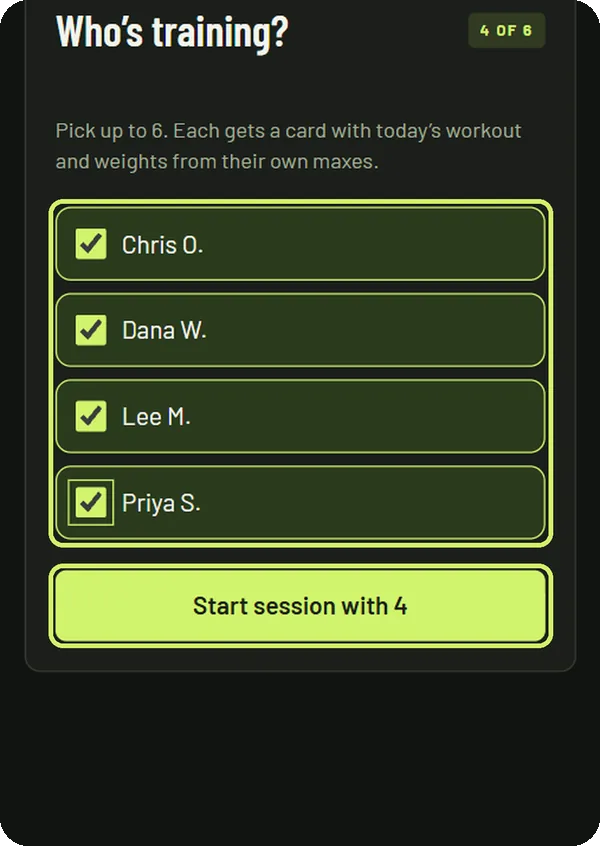
Tap Coach a session, tick up to six clients and tap Start session.
Log sets as they happen
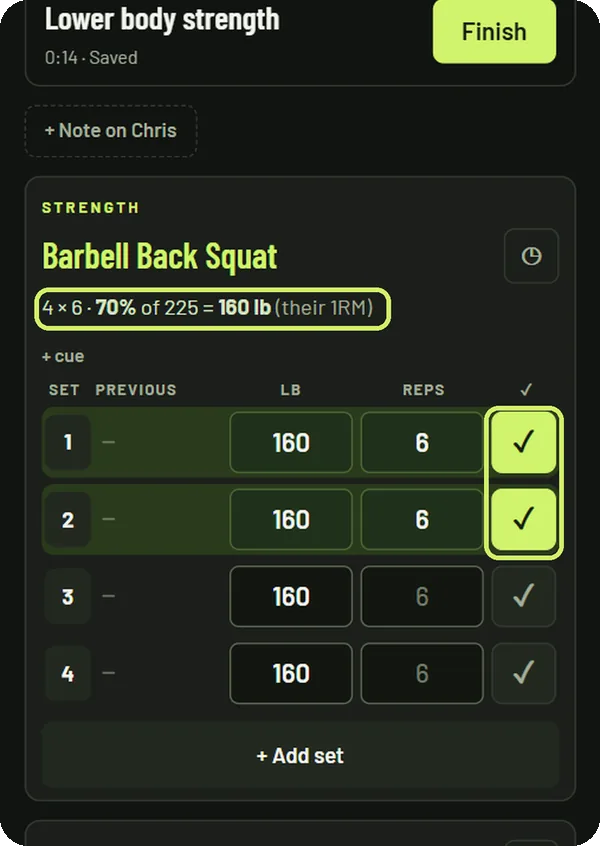
Each client gets a tab across the top with their weights already filled in (70% of Chris's 225 lb squat is 160 lb). Tap the check mark after each set; change the weight or reps first if they went heavier or lighter. A rest timer starts on its own.
Never miss an injury
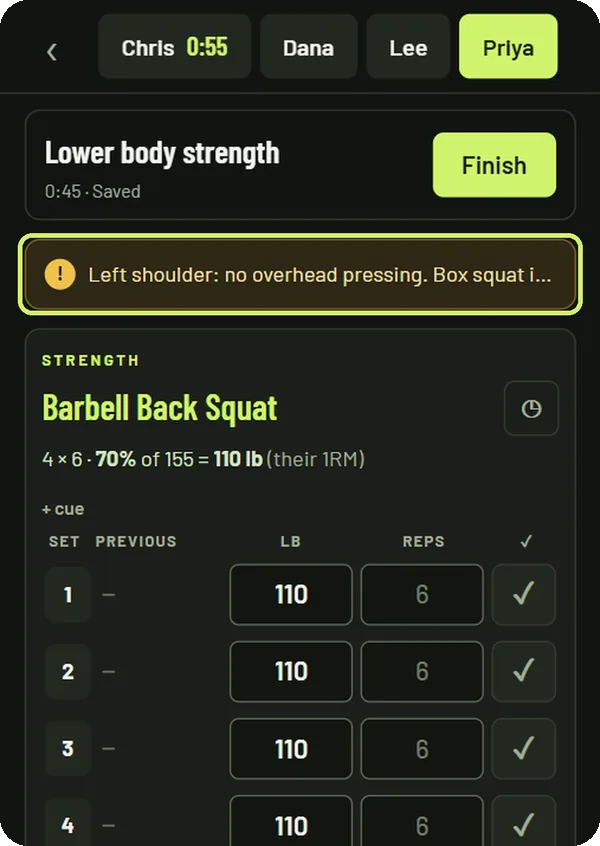
Switch to the next client's tab. Their trainer note shows as a yellow banner at the top, so the shoulder you wrote about last month is right in front of you.
Add a movement cue with + cue when it helps ("knees out"); it comes back the next time that client does that movement. When the session's done, tap Finish on each tab, then Finish workout.
4. Show progress at every check-in
Open a client's page
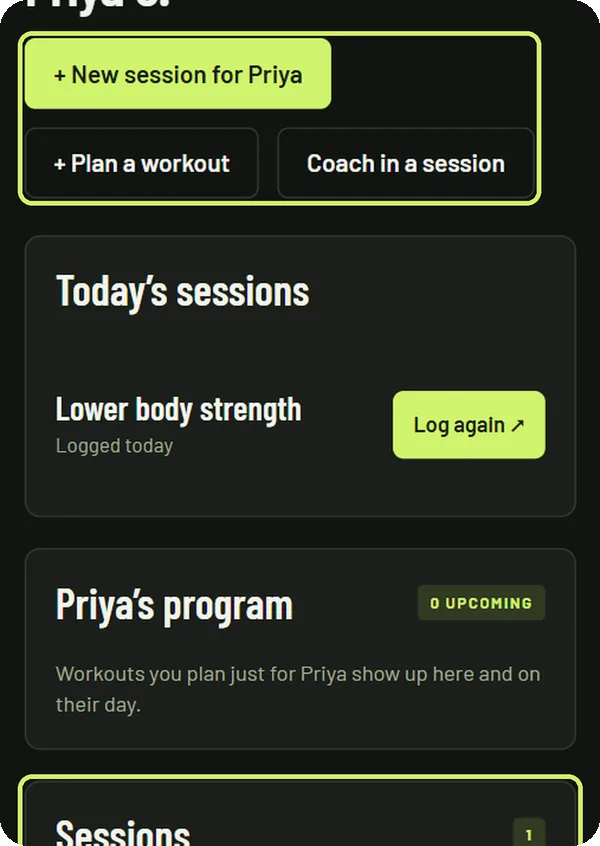
Every session you log lands on the client's page, newest first, next to anything you've planned just for them. + New session starts a 1:1 right from here.
See the numbers
Open a lift under Lifts & maxes for their 1RM, the max estimated from what they've logged, their heaviest set and a ready-made percentage chart.
5. Give clients their own view (optional)
- On the client's page, tap Create invite link and send it by text or email.
- They create an account with their email and a password.
- Everything you logged for them moves into their account: sessions, maxes, PRs and their program. Your notes and cues stay private.
- They can install RepRival Fitness from the App Store or Google Play, or add app.reprivalfitness.com to their home screen.
Your first-week checklist
- Add this week's clients by name.
- Write trainer notes for anyone with an injury or limit.
- Enter maxes for each client's main lifts.
- Coach one 1:1 session and one small-group session in the app.
- Send invite links to clients who want their own view.
- Questions? Use Send feedback in Settings, or email support@reprivalfitness.com.